
Overview
Budget Billing allows eligible utility accounts to pay a fixed monthly amount throughout the year instead of fluctuating bills based on actual consumption. At the end of the 12-month budget period, the system reconciles the total budgeted amount paid against actual charges, resulting in either a credit or an additional charge on the final bill.
This article covers setup, enrollment, calculation logic, and edge cases.
Prerequisites
Before setting up Budget Billing, confirm the following are in place:
- Rate tables and tax tables are configured and active
- The account has at least 12 months of billing history prior to the budget start date
- Budget year is configured for exactly 12 months (non-calendar year starts are supported)
How to Set Up Budget Billing
Step 1 — Configure the Budget Year
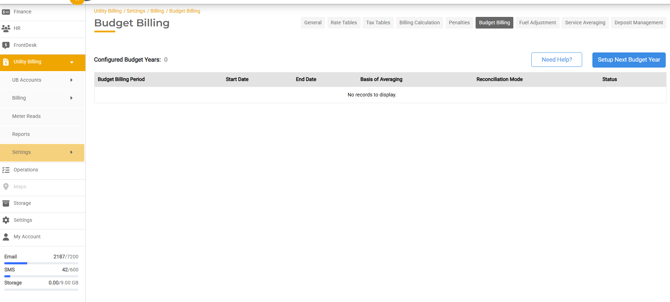
Navigate to UB > Settings > Billing > Budget Billing and select "Setup Next Budget Year."
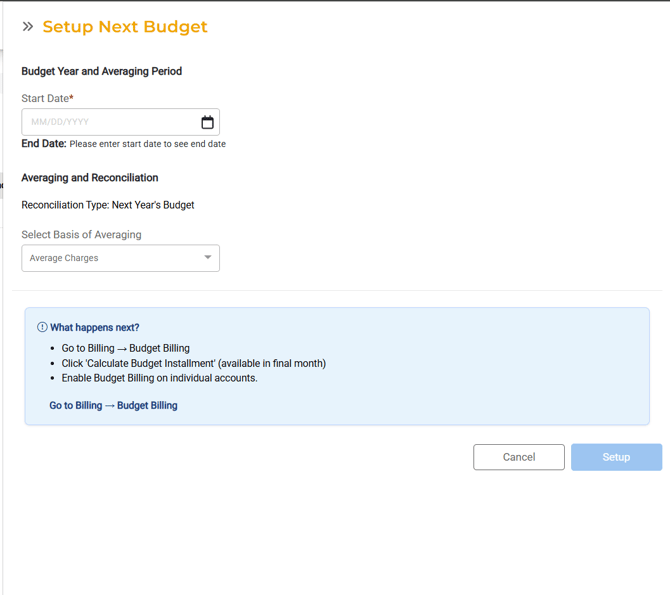
- Enter the start date. The end date is automatically calculated to exactly one year later.
- Budget years must always be exactly 12 months.
- Reconciliation mode will always be set to "Next Year's Budget."
- Select the basis of averaging:
- Average Charges — looks back at the 12 months of charges for each service prior to the budget start date, sums them, and divides by 12.
- Average Consumption — looks back at the 12 months of consumption prior to the budget start date, sums it, divides by 12 to get average consumption, then multiplies by current rate and tax tables to arrive at the monthly charge.
- If an account has services that do not use consumption, those services will automatically fall back to Average Charges regardless of the selected method.
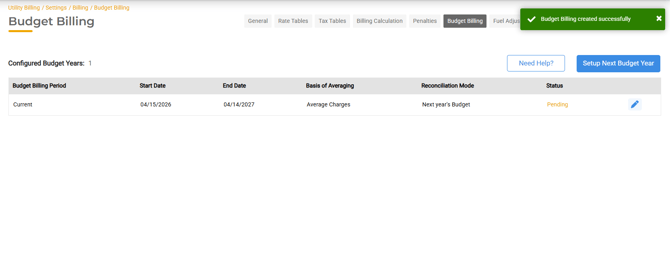
- Once added, the budget will be marked as pending.
Step 2 — Calculate Budget Installments
Navigate to Billing > Budget Billing and select "Calculate Budget Installment."
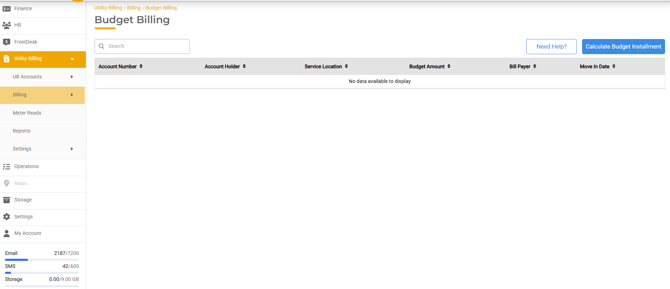
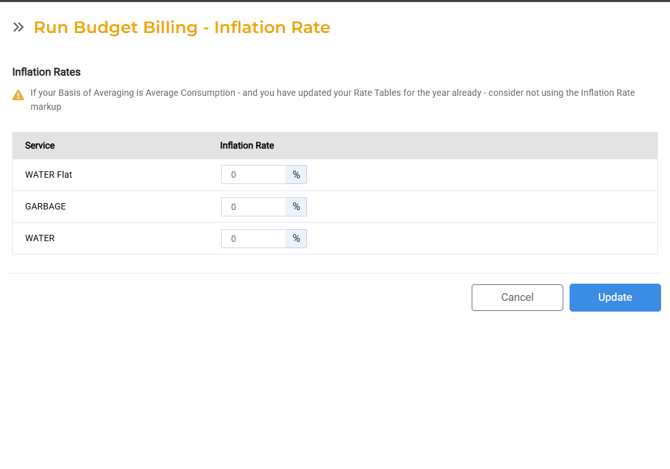
- If there is already an active budget, and the user is setting up the next years budget, calculation of the 'pending' budget can only happen on the last day of the budget year.
- Enter any inflation rate per service to increase the budget by that percentage. Leave at 0% if no adjustment is needed.
- Confirm that rate tables and tax tables are up to date before running, as these are used in consumption-based calculations.
- Click "Calculate Budget" to generate installment amounts.
Step 3 — Enroll Accounts
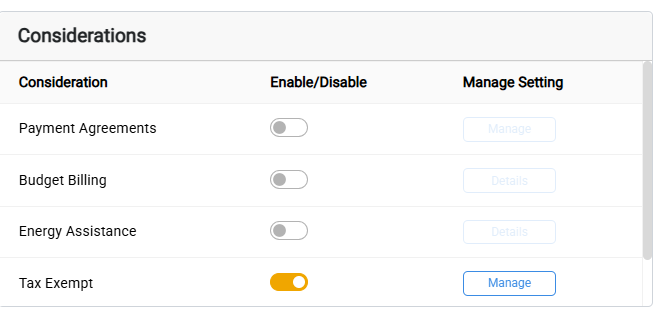
Navigate to the Account, go to Account Details, and toggle on "Enable Budget Billing" under Considerations. This triggers the budget calculation for that specific account.
Each account must be enrolled separately
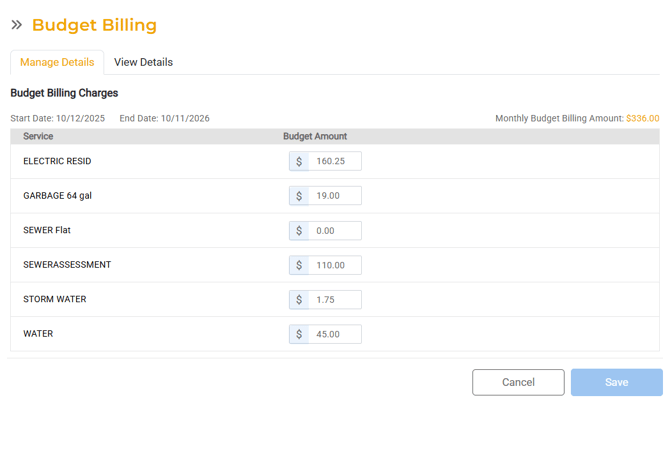
When selecting 'manage' the user can see the budget amount calculated for each service, and can edit these amounts as needed. They will reset when the new budget us calculated for the following year
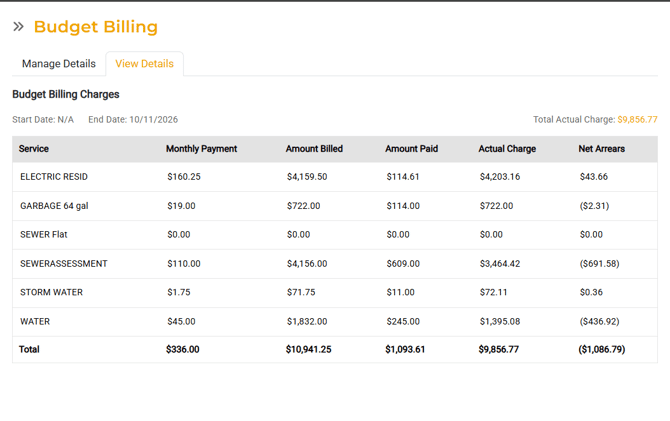
Under the View Details tab, the different in the amount billed, and actual charges, give the user insight into how much of a difference there will be at the end of the year to reconcile, this difference is noted as the 'net arrears'
- When reconciliation happens at the end of the year, the 'net arrears' is reconciled into the new budget. When the new budget is calculated, it will then look at the net arrears, divide it by 12 (whether it is a debit or credit) and apply it to the next years budget.
Note: If a mid-year opt-in occurs, the system calculates the budget amount using the 12 months of history prior to the budget year start date — not the opt-in date.
UI Features
- Need Help buttons are available under Settings > Billing > Budget Billing and Billing > Budget Billing to guide staff on what actions to take next.
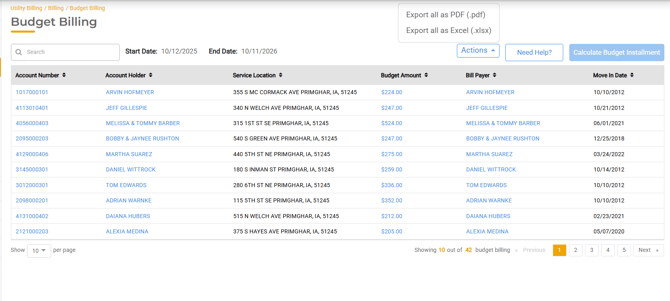
- An Actions dropdown - on the Budget Billing screen, it shows all accounts in the budget. The Action button allows staff to export all enrolled accounts to Excel or PDF.
Calculation Logic & Edge Cases
Historical data requirements
- Accounts must have at least 12 months of history prior to the budget start date to be eligible.
- If an account has history going back a full year but only has 2–3 months of actual invoices (due to skipped billing periods), the system will still calculate a budget but will divide by the number of available months rather than 12.
- If there are more than 12 invoices in the lookback window, the system still divides by 12.
Inflation rate
- The inflation rate is applied after the base annual budget amount is calculated.
- If using Amount (charge-based) averaging, a non-zero inflation rate must be applied correctly — confirm the displayed dollar amounts match expected math before enrolling accounts. A known issue was identified where charge-based calculations with non-zero inflation rates displayed incorrect amounts. Confirm this is resolved in your environment before go-live.
Correct monthly installment formula
For charge-based: Sum of last 12 months of charges ÷ 12 = Monthly Installment (before inflation adjustment)
For consumption-based: Sum of last 12 months of consumption ÷ 12 = Average Monthly Consumption × current rate/tax tables = Monthly Installment (before inflation adjustment)
Billing Run Behavior
- If a budget is active but the billing run date falls outside the budget period, the system will charge actuals rather than the budget amount.
- If a new budget has been set up but is still in "Pending" status (not yet activated), the system will charge actuals.
- If there is a gap between an old budget and a new budget, the start date of the billing run must fall within the new budget period for budget amounts to apply. Otherwise, actuals will be charged.
Opt-Out, Move-Out & Service Changes
Opt-out or move-out
- If an account opts out of Budget Billing, a service is stopped, or an account moves out, the system will reconcile the net arrears (difference between total budgeted and total actual charges) in the next billing run completed after the opt-out or move-out.
Adding or starting a service on a budgeted account
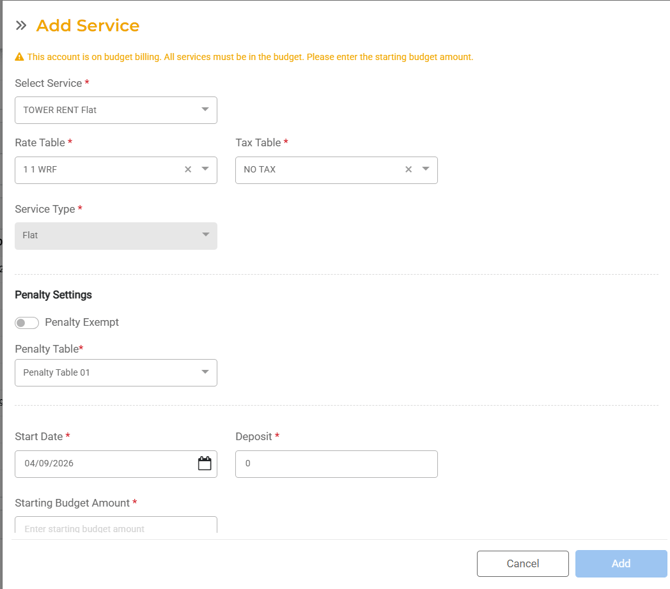
- Every service on a budgeted account must be enrolled in Budget Billing. When adding or starting a new service, staff are required to enter a budget amount for that service — this field is mandatory.
- At the end of the budget year, the system will use whatever historical data is available for that service to calculate the following year's budget.
Reconciliation
There are two types of reconciliation
End of Budget Year: Reconciliation mode is always set to "Next Year's Budget." So when the new budget is calculated, reconciliation is applied to the new budget amounts. This is not seen in the billing run, but net arrears will reset to 0 and new budget will include the net arrears from previous year
During Billing Run: Upon move-out, upon opt-out, or stop service. The system compares the total budgeted amounts paid against actual charges and applies the difference as a credit or additional charge in the next billing run.
Quick Reference: When Actuals Are Charged Instead of Budget Amount
| Scenario | Result |
|---|---|
| Billing run date start date is outside the active budget period | Actuals charged |
| New budget is set up but still Pending/not activated, Old budget is no longer in period. | Actuals charged |
| Gap between old and new budget; Billing run start date not in new period | Actuals charged |