
Overview
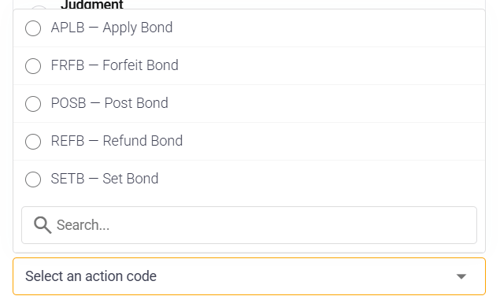
Bonds are recorded on a case with Record Action, using a bond action code. A bond usually moves through these steps:
- Set Bond (SETB): the court orders a bond amount. This creates a Bond Due amount on the case.
- Post Bond (POSB): someone pays the bond. The money is held on the case as Bond Held.
- Then one of these:
- Apply Bond (APLB): use the bond to pay what the defendant owes.
- Refund Bond (REFB): give back what's left after applying, or the whole bond.
- Forfeit Bond (FRFB): the court keeps the bond, usually because the defendant didn't appear.
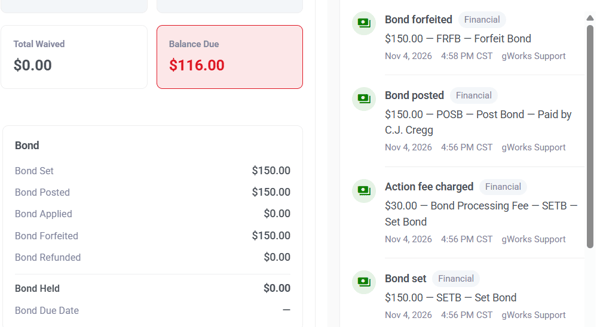
Each step is shown in the case's Financials tab under Bond, and on the Case Timeline.
Before you start
- The case must already exist. See Create a case from tickets.
- Your court admin must have set up the bond action codes and their GL distributions.
- To post a bond, know who paid it (the bond payer).
Record any bond action
Every bond step starts the same way:
- Click Record Action at the top of the case.
- Choose Case Level and click Next.
- Choose Action Code. Set Action Type to Bond Action, then pick the bond code from the Action Code list. Click Next.
- Fill in the details for that bond step (see below), check the Accounting Impact, and click Record Action.
Set a bond
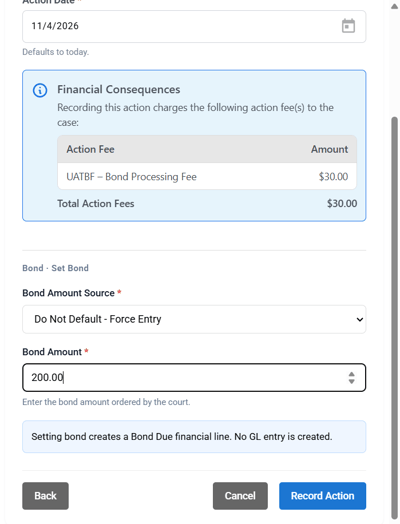
- Choose SETB — Set Bond.
- Bond Amount Source decides the amount:
- Default Fine, Court Costs & Fees: the case's fine plus court costs and fees.
- Double the Default Fine, Court Cost & Fees: twice that amount.
- Do Not Default - Force Entry: type the amount the court ordered in Bond Amount.
- If a Financial Consequences box appears, recording the action adds that action fee to the case.
- Click Record Action. Setting a bond doesn't post anything to the general ledger.
Post a bond
- Choose Post Bond.
- Enter the Post Bond Amount. It can't be more than the Bond Due.
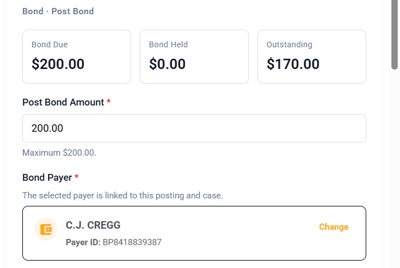
- Choose the Bond Payer, the person who paid the bond. Click Change to pick someone else.
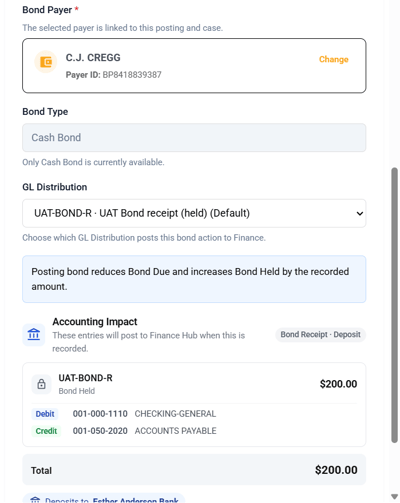
- Bond Type is Cash Bond. It's the only type in this release.
- Check the GL Distribution and Accounting Impact. The bond is deposited to the bank and held as a liability until it's applied, refunded, or forfeited.
- Click Record Action.
Apply a bond to the balance
- Choose Apply Bond.
- The Apply Bond Amount is calculated for you: the smaller of Bond Held and the outstanding balance, including any fee for this action.
- The bond pays the balance in your court's Payment Distribution Order, shown on the panel.
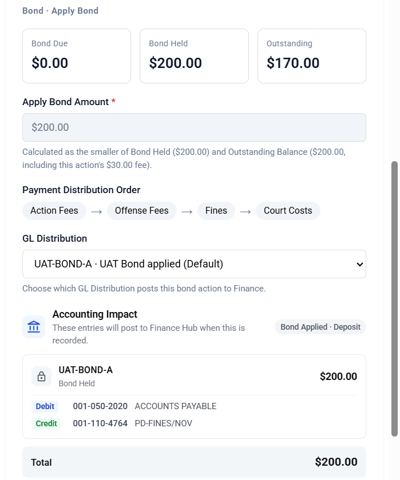
- Click Record Action. The balance due drops by the applied amount.
Refund a bond
- Choose Refund Bond.
- Refund Bond Amount defaults to the Bond Held. Lower it for a partial refund.
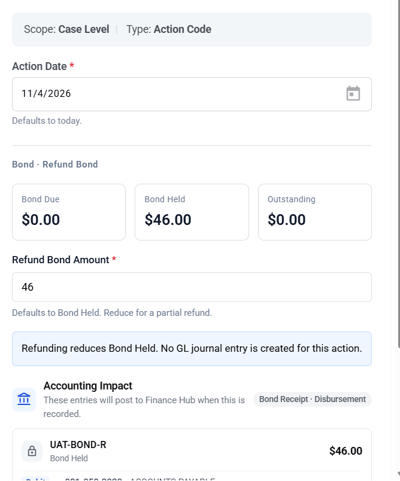
- Click Record Action. Bond Held drops by the refund.
- Pay the refund in Finance Hub. Court doesn't write the refund check. Finance staff pay the bond payer through Accounts Payable, following your city's usual process.
Forfeit a bond
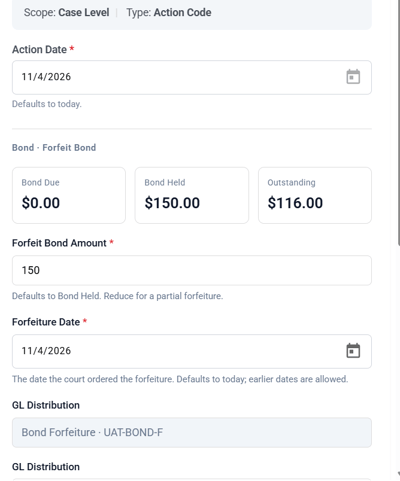
- Choose Forfeit Bond.
- Forfeit Bond Amount defaults to the Bond Held. Lower it for a partial forfeiture.
- Forfeiture Date is the date the court ordered it. It defaults to today; earlier dates are allowed.
- Check the GL Distribution and Accounting Impact. A forfeited bond becomes court revenue.
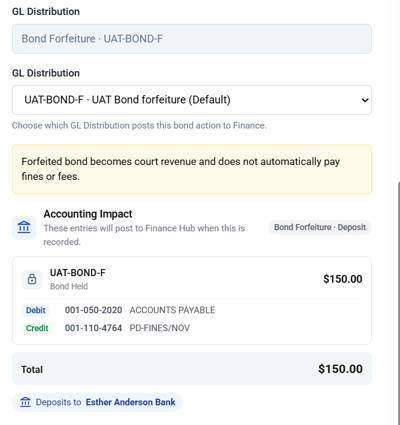
- Click Record Action.
What you'll see
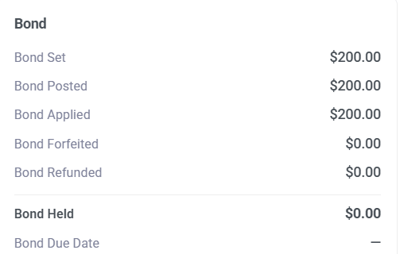
- The Financials tab's Bond panel shows Bond Set, Posted, Applied, Forfeited, Refunded, and the Bond Held that's left.
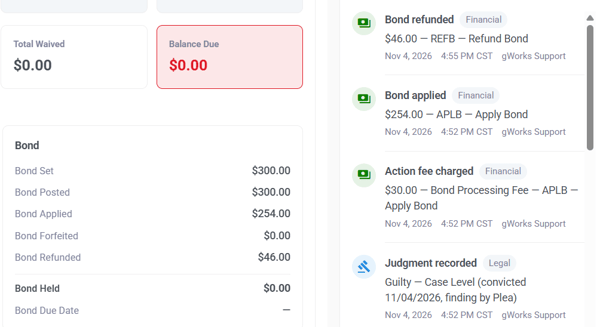
- The Case Timeline shows each step, for example Bond set, Bond posted (with who paid it), Bond applied, Bond refunded, or Bond forfeited.
Good to know
- Forfeiting doesn't pay the case. The forfeited money becomes court revenue, but the fine, court costs, and fees stay on the case. Apply the bond instead if it should pay the balance, or waive what the defendant no longer owes.
- Action fees. Depending on your court's setup, bond actions can add an action fee, such as a bond processing fee. The panel shows it before you record.
- Cash Bond only. Surety and other bond types aren't available in this release.
- Apply before you refund. If the defendant owes anything, apply the bond first, then refund what's left.
- Bonds and the daily close. Posted bonds are counted in the Daily Cash Receipts Journal along with payments.
See also
- How to take a payment on a court case
- How to record a plea and judgment and close a court case
- How to close out the court day and process receipts in Finance Hub