
This workflow allows you to move a burial. Moving a burial means moving an occupant's record from one grave to another. An occupant is the person buried in, or reserved for, a grave. Use it when a burial was recorded in the wrong grave or a data entry error needs correcting. You can also use it when a burial is relocated because of a family decision, a plot or cemetery issue, or environmental concerns. All changes are automatically tracked in the history of both graves.
Key Features- Move a burial directly from the occupant's record on the grave
- Search for the destination grave by Grave ID, cemetery name, owner name, or deed number
- Review the destination grave's status, cemetery, and owner before confirming
- Automatically updates the occupants and historical log on both graves
- The occupant must already be recorded on a grave
- The destination grave must already exist in your cemetery structure
- Have the destination grave's Grave ID, owner name, or deed number ready so you can find it quickly
- Go to Cemetery → Grave Management
- Identify the grave where the burial is currently recorded
- Click the Grave ID to open its details
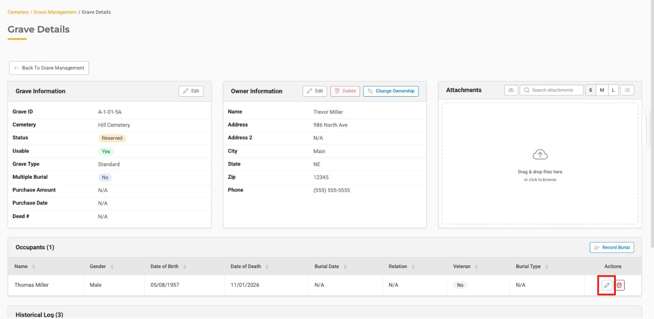
- Under Occupants, click the pencil (edit) icon next to the occupant you want to move. The Edit Occupant window opens.
- Select Move Burial
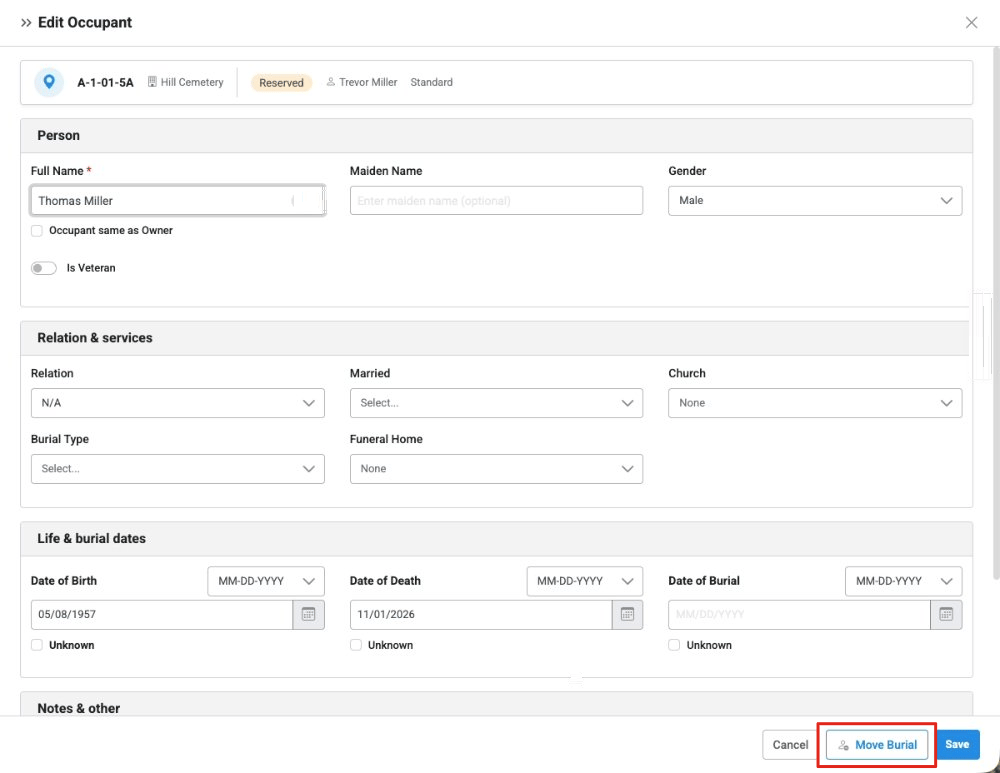
Note: You can move one occupant at a time. If a grave has more than one occupant, repeat these steps for each one.
Step 1: Find the Destination Grave
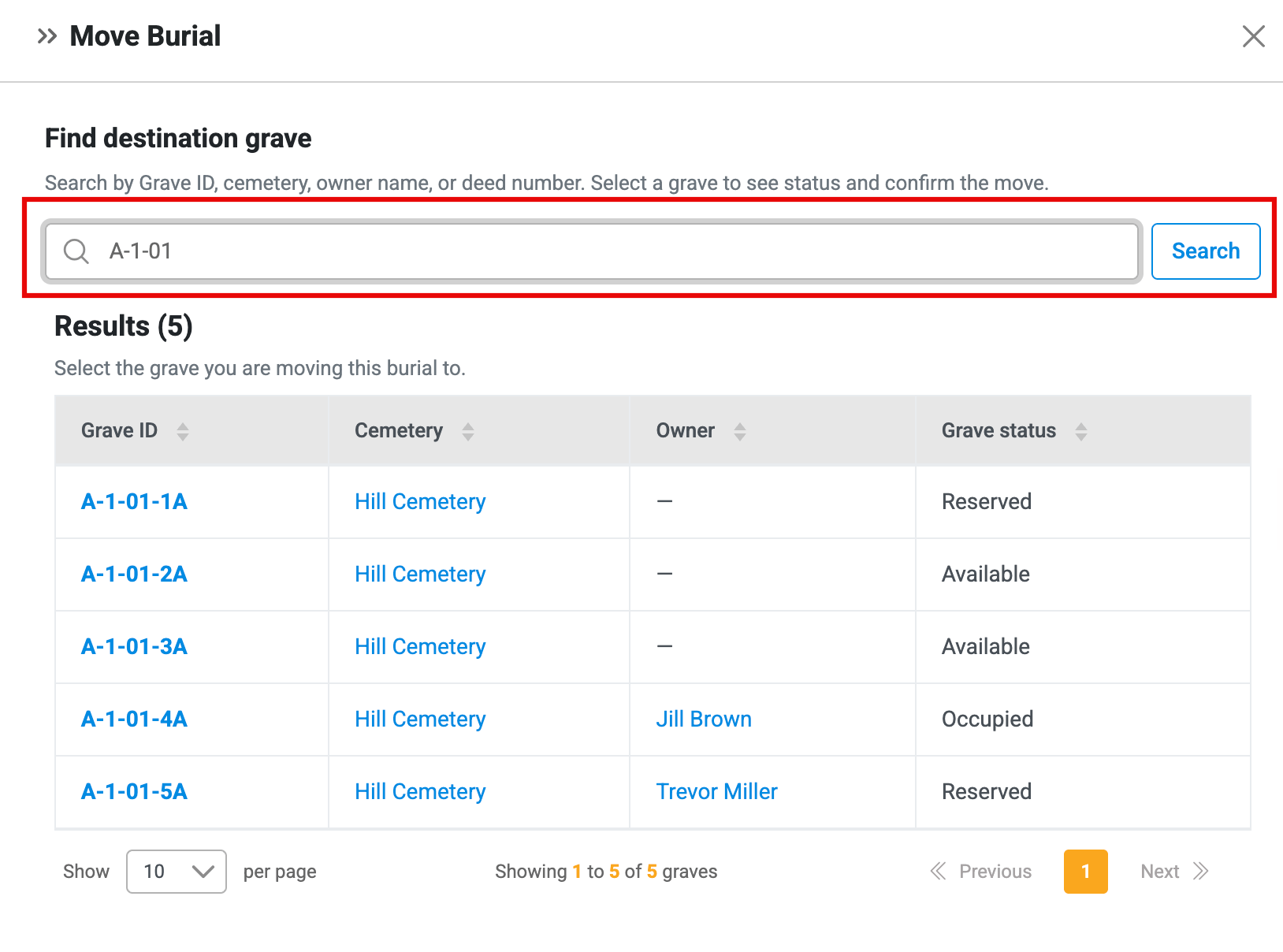
- Under Find destination grave, enter a Grave ID, cemetery name, owner name, or deed number
- Click Search
- Select the destination grave from the results
- Review the destination grave's status, cemetery, and owner
Note: If you selected the wrong grave, click Change grave to search again.
Step 2: Save and Confirm the Move
- Click Save
- A Move Burial message appears. It explains that this action will update the burial history and associated grave records.
- Click Confirm Move to complete the move, or click Cancel to go back
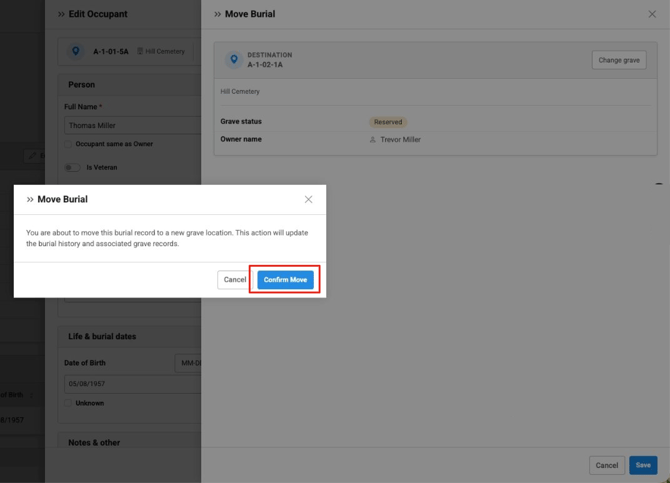
Note: Check the destination grave carefully before you confirm, because you can't undo the move. If you move a burial by mistake, you can fix it by moving the occupant back to the correct grave using the same steps.
After saving:- A success message appears: "Occupant successfully moved to Grave ID: [destination grave]"
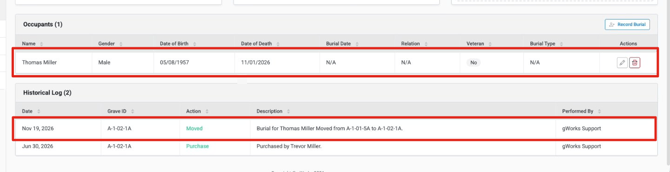
- The occupant no longer appears under Occupants on the original grave
- The occupant appears under Occupants on the destination grave
- The Historical Log on both graves shows a Moved entry, such as "Burial for [occupant] Moved from [original Grave ID] to [destination Grave ID]"
- Move each occupant separately when a grave has more than one occupant
- Searching by Grave ID is the fastest way to find the exact destination grave
- Search by owner name to find other graves owned by the same person
- Check the Historical Log on either grave to see when and where a burial was moved
Issue: The destination grave doesn't appear in the search.
Fix: Try searching by a different detail, such as the Grave ID, owner name, or deed number. Then click Search again.
Issue: You don't see the Move Burial button.
Fix: Open the occupant with the pencil (edit) icon. Move Burial is in the Edit Occupant window.