
To Configure:
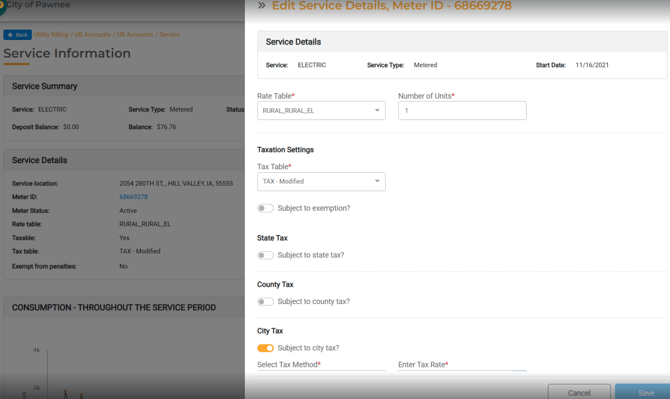
Setting the Multiplier (Number of Units): Utility Billing > UB Accounts > [Account] > Services > Select the Service > Edit > Number of Units
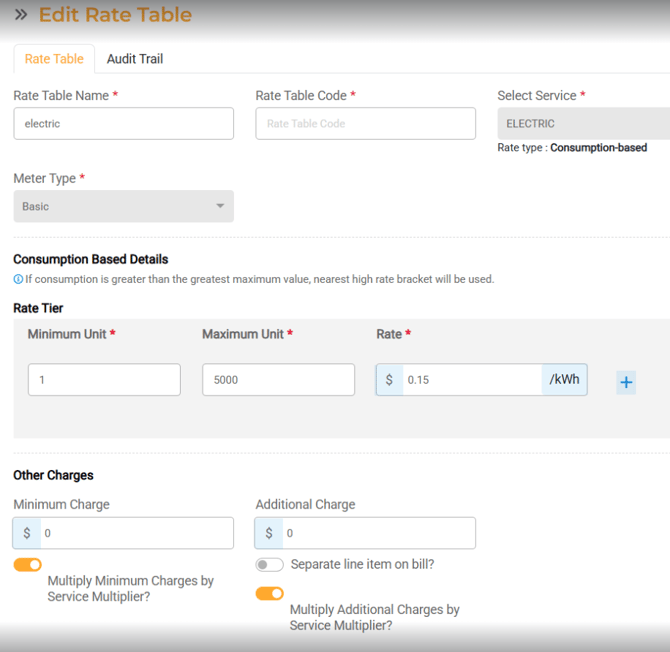
Configuring Rate Table Toggles: Utility Billing > Settings > Billing > Rate Table > Setup the Multipliers
How the Multiplier Works
Consumption Charges
The multiplier is always applied to consumption-based charges. It is applied to the resulting dollar amount, not to the raw usage number.
Formula: Consumption Charge = (Usage × Rate) × Number of Units (Multiplier)
Example: 100 kWh at $1.00/kWh with Number of Units (Multiplier) = 10 (100 × $1.00) × 10 = $1,000.00
Minimum Charge
The minimum charge only comes into play when the calculated consumption charge falls below the minimum threshold. The toggle on the rate table controls whether Number of Units (Multiplier) is applied to it.
Evaluation order:
1. Calculate consumption charge: Usage × Rate (no multiplier yet)
2. Compare to the minimum charge
3. If consumption ≥ minimum: use the consumption charge and multiply by Number of Units (Multiplier). Minimum logic does not apply.
4. If consumption < minimum: use the minimum charge, then apply toggle logic below
Toggle State Calculation
ON Minimum Charge = Base Minimum × Number of Units (Multiplier)
OFF Minimum Charge = Base Minimum (not multiplied)
Example (consumption below minimum): Number of Units (Multiplier) = 10, Minimum = $100, Usage generates $50 Consumption ($50) < Minimum ($100), so minimum applies. Toggle ON: $100 × 10 = $1,000.00 Toggle OFF: $100.00
Additional Charge
The additional charge is always included in the total. The toggle controls whether it is multiplied.
Toggle State Calculation
ON Additional Charge = Base Additional × Number of Units (Multiplier)
OFF Additional Charge = Base Additional (added once, not multiplied)
Example: Number of Units (Multiplier) = 10, Additional = $10 Toggle ON: $10 × 10 = $100.00 Toggle OFF: $10.00
Flat Rate Services
The multiplier always applies to flat rate charges. There is no toggle.
Formula: Flat Charge = Base Flat Rate × Number of Units (Multiplier)
Important Rules
• The Number of Units (Multiplier) defaults to 1. No change to existing billing behavior unless Multiplier is explicitly updated.
• Number of Units (Multiplier) is set at the service level and applies per service during the billing run.
• Changes apply to future billing runs only. No retroactive recalculation of posted invoices.
• Number of Units (Multiplier) supports up to 4 decimal places (e.g., 2.5000).
• The "Consumption Billed" column in Billing Run Step 4 reflects the raw meter read, not the multiplied amount. The multiplied total is reflected in Service Charges.
• Budget Billing: service multiplier interaction with budget installment calculations is handled separately. Contact the Support team if this applies to your setup.
Common Scenarios
-
Multi-unit residential building (e.g., 10 apartments on one electric service): Set Number if Units = 10 on the electric service. All consumption, flat, and toggle-enabled charges will scale by 10 automatically each billing run.
-
Toggling off minimum charge multiplication: If the municipality wants the minimum charge to apply as a flat floor regardless of unit count, turn the "Multiply Minimum Charges by Service Multiplier" toggle OFF on the rate table.
-
Verifying charges in a billing run: Navigate to Billing Run Step 4. Service Charges reflects the final multiplied total. Use the Review Register Report for a full breakdown.